
Basic 4 Function Calculator
Sometimes you just need a plain calculator. This one does the four basic operations with big buttons, memory keys and a percent key that behaves like a desk calculator, plus a running tape so you can check your work — and a switch between pocket-calculator immediate execution and school-style order of operations.
- Free to use
- No sign-up
- Runs in your browser
Basic calculator
Tape
Keyboard: digits, . + - * / Enter or =, % , Backspace, Esc (clear), Delete (clear entry).
Calculator Practice Pack
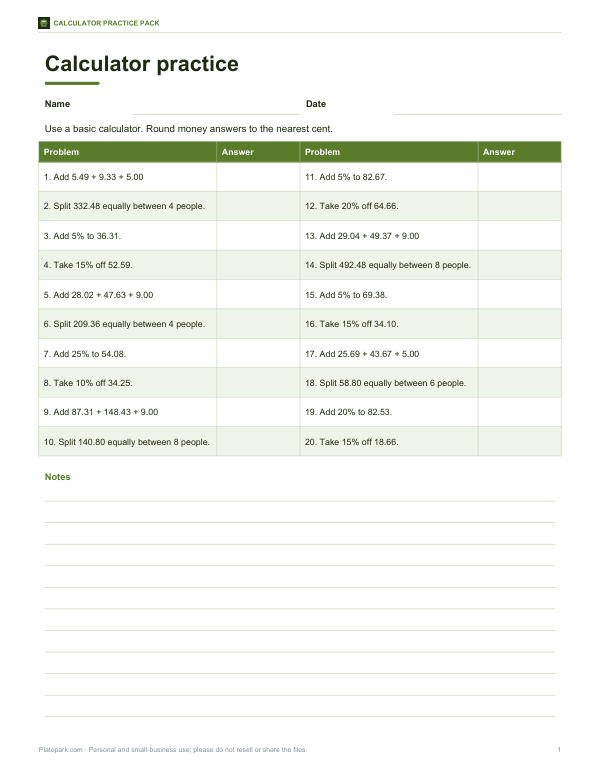
Printable calculator practice: key guide card, percent key cheat sheet, one worksheet of everyday calculations with an answer key and a receipt checking sheet.
- Key guide (PDF)
- Percent cheat sheet (PDF)
- Worksheets (PDF/DOCX)
- Receipt check sheet (PDF/DOCX/XLSX)
Formats: PDF, DOCX, XLSX. Instant download after payment (link valid 72 hours, up to 5 downloads). AI-assisted: the templates were drafted with AI help and reviewed and laid out before publishing.
$3.00 USD, one-time 4 files · about $0.75 each
- Instant download
- 7-day refund
- Secure checkout by Stripe
✓ Classroom use included
7-day money-back guarantee. Full refund within 7 days of purchase, even after you download.
Free sample: Calculator Key Guide (PDF, 101 KB)
Full refund within 7 days — see the refund policy and license.
License: personal and classroom use. Teachers may print and photocopy these files for the students in their own classes, and share them in a password-protected class space (e.g. Google Classroom). Please do not resell, redistribute, or post the files on public websites. One purchase covers one teacher.
Free printables
Single sheets you can print right now, no sign-up. The full pack adds every sheet in one download plus the editable files.
 Printable Receipt Check Sheet
What a four-function calculator does
A four-function calculator adds, subtracts, multiplies and divides. Most also have a percent key, a square root key, a sign-change key and memory keys, but no trigonometry, powers or brackets. It’s the right tool for shopping totals, splitting bills, checking invoices, household budgets and everyday arithmetic — and it’s the kind of calculator many exams allow when scientific calculators are not permitted.
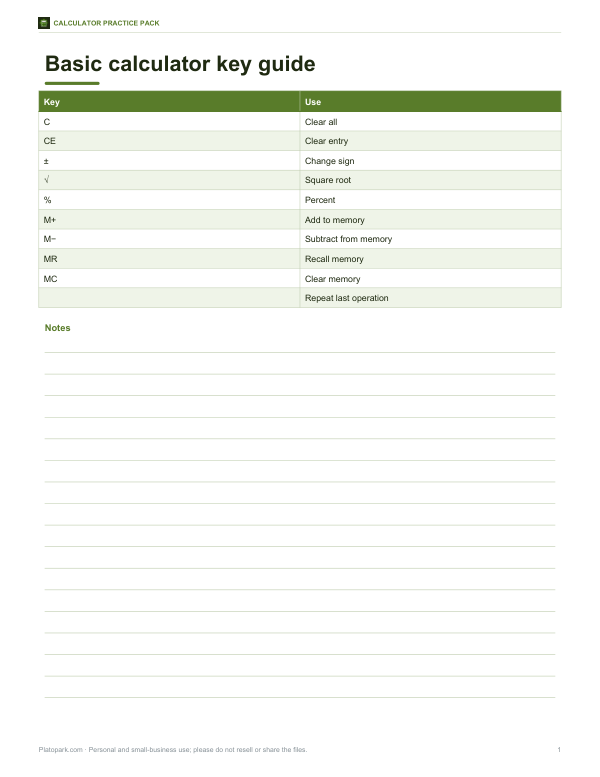
The keys
| Key | What it does |
|---|---|
| C | Clear everything (except memory) |
| CE | Clear the current entry only — fix a typo without losing the calculation |
| ± | Change the sign of the number on the display |
| √ | Square root of the number on the display |
| % | Percent — see the table below |
| M+ / M− | Add the display to memory, or subtract it from memory |
| MR | Recall the memory value to the display |
| MC | Clear memory to zero |
| = | Finish the calculation; pressing again repeats the last operation |
An “M” on the display shows that memory holds a non-zero value.
Immediate execution vs order of operations
| Keys pressed | Immediate (pocket calculator) | Order of operations |
|---|---|---|
| 2 + 3 × 4 = | 20 — (2 + 3) then × 4 | 14 — 3 × 4 first, then + 2 |
| 10 − 6 ÷ 2 = | 2 | 7 |
| 5 × 4 + 3 = | 23 | 23 |
Most basic pocket and desk calculators use immediate execution: each operation is carried out as soon as you press the next operator. Scientific calculators and phone calculators in scientific mode follow the standard order of operations (multiplication and division before addition and subtraction). Neither is “wrong”, but they give different answers to the same keystrokes — choose the mode that matches the calculator you are used to, or that your teacher expects.
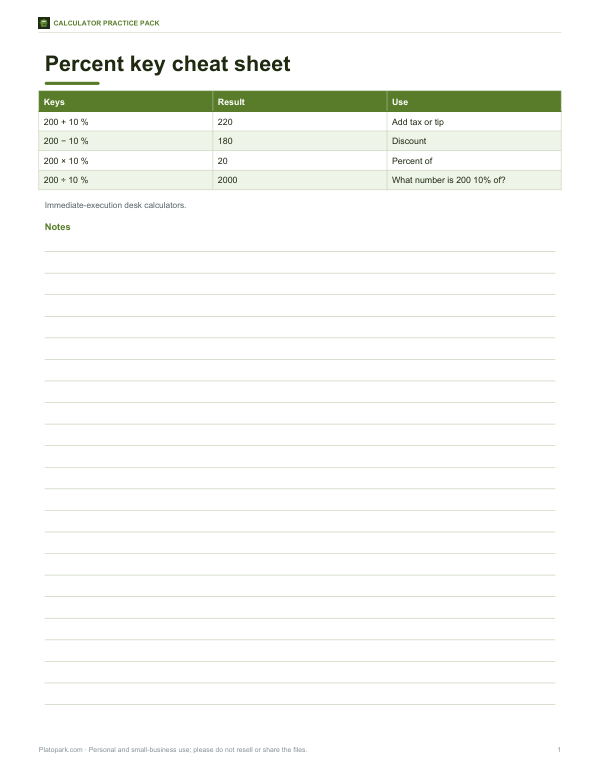
How the percent key works
| Keys | Result | Meaning |
|---|---|---|
| 200 + 10 % | 220 | Add 10% (e.g. add tax or a tip) |
| 200 − 10 % | 180 | Take 10% off (a discount) |
| 200 × 10 % | 20 | 10% of 200 |
| 200 ÷ 10 % | 2,000 | 200 is 10% of what? |
| 25 % | 0.25 | On its own, converts a percent to a decimal |
This is how most desk calculators behave in immediate mode, and it makes shopping maths quick: price + tax % gives the total, price − discount % gives the sale price. Phone calculators vary, so it is worth knowing which convention yours uses.
Worked examples
| Task | Keys | Answer |
|---|---|---|
| Total a receipt | 4.99 + 12.50 + 3.25 = | 20.74 |
| Split a bill of 86.40 between 3 | 86.40 ÷ 3 = | 28.80 |
| Add a 15% tip to 64 | 64 + 15 % | 73.60 |
| 25% off a 79.99 item | 79.99 − 25 % | 59.9925 → 59.99 |
| Unit price: 3.49 for 12 oz | 3.49 ÷ 12 = | 0.2908… per oz |
| Sum two subtotals with memory | 12 × 3 = M+ 8 × 5 = M+ MR | 76 |
The memory example shows why memory keys exist: without brackets, a pocket calculator can’t do (12 × 3) + (8 × 5) in one go in immediate mode, so you store each product in memory and recall the total at the end.
Repeat equals and constant calculations
Pressing = again repeats the last operation with the same number. Enter 100 × 1.05 = = = to see 105, 110.25, 115.76 — compound growth at 5% a year over three years. Or 1000 − 45 = = = to subtract a regular payment. Accountants and shop workers use this “constant” feature a lot.
Using the tape
Every completed calculation is written to the tape below the calculator, like the paper roll on a desk printing calculator. Use it to check a long column of figures, copy the lines into an email or spreadsheet, or print it to keep with receipts. The tape is stored only in this page; closing the tab clears it.
Precision and rounding
This calculator works to about 12 significant digits and removes tiny floating-point errors, so 0.1 + 0.2 shows 0.3. Results are not rounded to two decimal places automatically — round money answers yourself (59.9925 becomes 59.99). Dividing by zero or taking the square root of a negative number shows “Error”; press C to continue.
Common mistakes and how to avoid them
- Pressing the wrong operator: in immediate mode, press the correct operator straight away and it replaces the wrong one.
- Forgetting that a percent key needs an operator first: 200 + 10 % adds tax, but 10 % on its own just gives 0.1.
- Mixing modes: if you learned on a scientific calculator, switch to order of operations so 2 + 3 × 4 gives 14.
- Leaving memory full: MC clears it; an M on the display is a reminder that memory holds a value.
- Typing a long number wrong: use CE to clear just the entry instead of starting the whole calculation again.
Checking answers with estimation
A quick mental estimate catches most keying errors. Before totalling 4.99 + 12.50 + 3.25, round to 5 + 12.50 + 3 = 20.50; if the calculator shows 60.74 you know a digit went wrong. For division, 86.40 ÷ 3 must be a little under 30. Estimating first is a habit taught in schools for exactly this reason.
A little history
Mechanical adding machines date back to Pascal’s calculator of the 1640s, and electronic desk calculators appeared in the early 1960s. Handheld four-function calculators became affordable in the 1970s and quickly replaced slide rules and adding machines in schools and offices. The layout — 7-8-9 on the top row, unlike a phone keypad — comes from those early adding machines.
Frequently asked questions
What is a four-function calculator?
A basic calculator that adds, subtracts, multiplies and divides, usually with percent, square root and memory keys.
Why does my calculator say 2 + 3 × 4 = 20?
Basic calculators use immediate execution. Switch to order of operations mode for 14.
How do I add a percentage?
Enter the amount, press +, enter the percent and press %. 200 + 10 % = 220.
What is the difference between C and CE?
C clears the whole calculation; CE clears only the number you are typing.
Can I use the keyboard?
Yes — digits, + − * /, Enter, %, Backspace and Esc all work.
Is anything saved?
No. The tape stays in this page until you close it.
May I print and share these worksheets with my class?
License: personal and classroom use. Teachers may print and photocopy these files for the students in their own classes, and share them in a password-protected class space (e.g. Google Classroom). Please do not resell, redistribute, or post the files on public websites. One purchase covers one teacher.